Showing posts with label Google. Show all posts

18 September, 2014

The best Android feature you’re not using: voice commands

ok-google
Google Now has become a central part of the Android operating system, introducing new functions and capabilities with every candy-flavored iteration. While voice commands have been core to the service since its launch, Google has done their part to continuously add new options regularly. Did we mention it’s now easier than ever to control your phone just by speaking to it? As of the latest Android KitKat update, users can jump right into Google Now simply by saying “OK, Google” at any time.

If you haven’t checked out voice commands in a while or are not acquainted with some of the newer (and very useful functions), here is a sampling of what you can do. Simply replace the text in brackets with whatever you are searching for or inquiring about and wait for Google to spit out the pertinent information.

Essential commands

  • “Go to [some website].”
  • “Search for [ Samsung Galaxy S5].”
  • “Open [Gmail].”
  • “Take a picture.”
  • “Record a video.”

Productivity

  • “Remind me to [call John at 6PM].”
  • “Remind me to [buy toilet paper at Target].”
  • “Set an alarm for [6PM].”
  • “Create a calendar event: [Happy Hour at Union on Friday at 5:00PM].”
  • “Where’s my package?”
  • “Note to self: [remember to buy milk].”
  • “What’s the tip for [$42]?”

Communications

  • “Call [George Smith].”
  • “Call [Mom mobile].”
  • “Text [Lee that I'm running 5 minutes late].”
  • “Send email to [Rob Jackson, subject, Google Now, message, Check out these Voice Commands].”
  • “Listen to voicemail.”
  • “Find [Bruce’s] number.”
  • “When is [Mary’s] birthday?”
  • “Post to [Google+]: [Google Now is awesome].”

Media

  • “Listen to: [TheDirty Projectors].”
  • “Play: [The Beatles].”
  • “What’s this song?”
  • “Play some music.”
  • “Watch [Toy Story 3].”
  • “What movies are playing tonight?”
  • “Where is [X-Men] playing?”
  • “Show me pictures of the [Chesapeake Bay Bridge].”

Navigation and Travel

  • “Navigate to [Ocean City, MD].”
  • “[Biking] directions to [The Brewer’s Art].”
  • “Find [the Eiffel Tower].”
  • “Where is [the Empire State Building]?”
  • “Where’s the nearest [ice cream shop]?”
  • “Show me the menu for [Holy Frijoles].”
  • “Call [Ledo's Pizza].”
  • “Show me my flights.”
  • “Where is my hotel?”
  • “What are some attractions in [Baltimore]?”

Information

  • “What time is it in [London]?”
  • “Do I need an umbrella today?”
  • “What’s the weather in [Cape Cod] for [the weekend]?”
  • “Where was [Albert Einstein] born?”
  • “How old is [Brad Pitt]?”
  • “How do you say [‘hello'] in [Spanish]?”
  • “What does [onomatopoeia] mean?”
  • “What’s [Google’s] stock price?”
  • “What is [Twitter] trading at?”
  • “What’s [16 ounces] in [pounds]?”
  • “What is the square root of 2209?”
  • “When is sunset?”
  • “Did the [Orioles] win today?”
  • “How did [the San Francisco Giants] do?”
Then, of course, Google has also included some Easter Eggs. Try telling Google Now to “Do a barrel roll,” or asking “What does the fox say?” for a giggle or two. And don’t forget, many if not all of these commands should work just as well with Google Glass and Google’s web voice search, as well.
What else can you do with Google Now? Let us know your favorite voice commands, Easter Eggs, tips, and tricks in the comments below!

Courtesy: Phandroid

How to find your parked car with Google Now [Android 101]

Google Now parked car
One of the most annoying things about owning a car is parking. First you have to find somewhere to park, which can be very difficult in big cities or at popular events. Once you finally find a spot you’re just dying to get out of the car. Oops! You forgot to take note of where you parked. Now you’re ready to go home, but you have no idea where to find your car.
There are dozens of great Android apps for finding parked cars, but most of them require you to input your location before you leave the vehicle. If you’re already forgetting to note where you parked in the first place you probably won’t remember to use an app. What if there was an automatic way to do this without any effort on your part? The good news is there is, and you probably already have it installed.
Did you know that the Google app you already use can include parking data? The app uses your device’s sensors to know when you leave a previously moving vehicle. When Google detects you’ve left a vehicle it will take note of your location, the time you parked, pinpoint the location on a map, and add it to your Google Now stream. All of this information will be displayed on a card like the one above.
How do I enable this?
parking steps
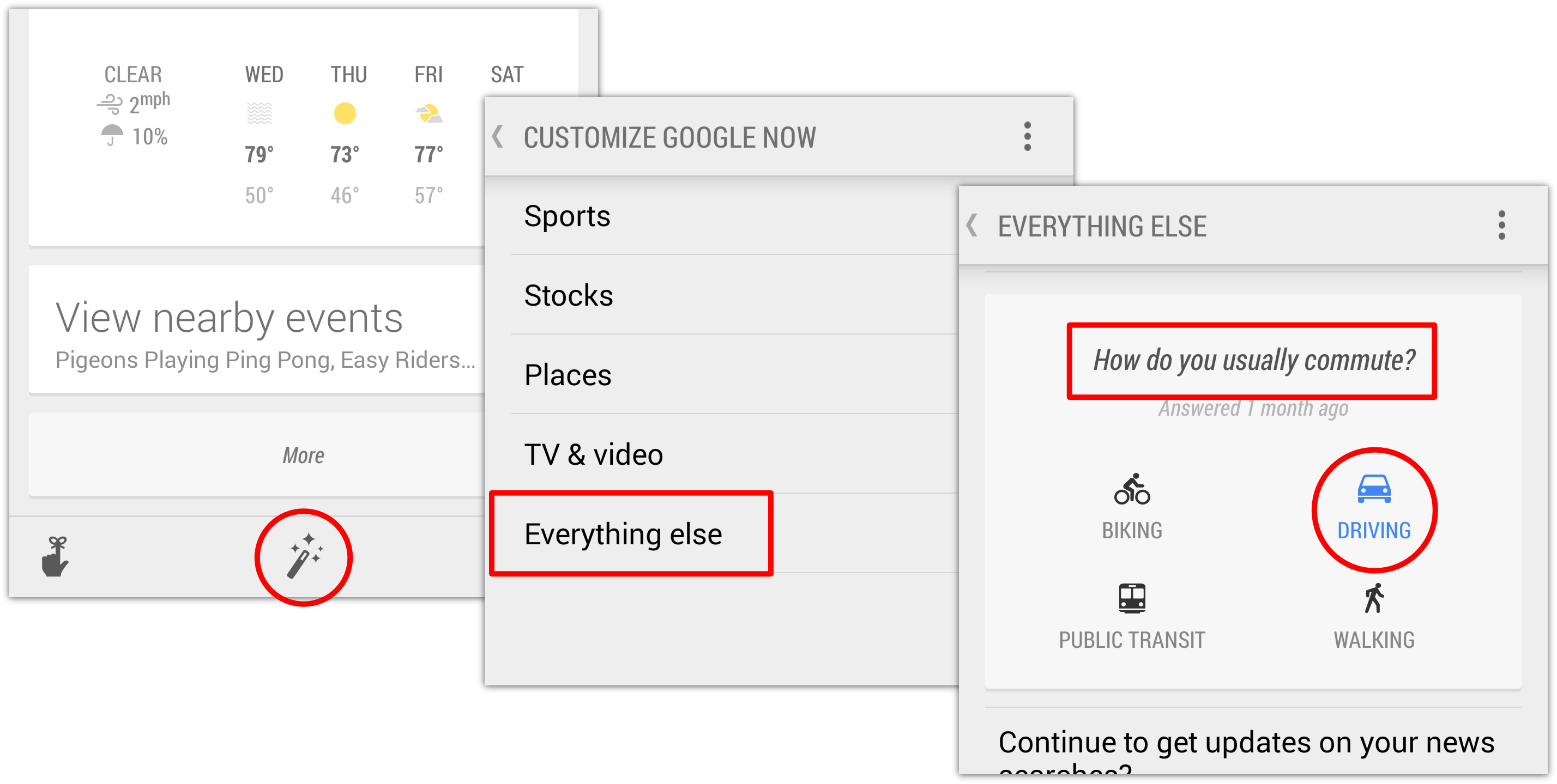
All you have to do is make sure “Driving” is set as your main mode of transportation.
  1. Open Google Now, scroll all the way down, and tap the Magic Wand icon.
  2. Go to Customize > Everything else > “How do you usually get around?”
  3. Choose Driving.
Can I choose when I see the parking card?
Like most Google Now cards, there are some additional options. Follow these steps to customize parking location cards:
  1. When a parking location card shows up in Google Now, touch the Menu icon on the card.
  2. Answer the questions to choose when to see the card.
parked car google
How do I turn off parking cards?
If you find that the parking location cards aren’t working well, or you just don’t need them anymore, you can turn them off.
  1. When a parking location card shows up in Google Now, touch the Menu icon on the card.
  2. Touch No when you’re asked if you want to keep receiving reminders about your parking location.

Courtesy: Phandroid

13 May, 2010

Backup your Gmail Inbox Online

gmail logoIf you want to backup your emails from Gmail to the local computer, enable POP3 access in your Gmail settings and then use a desktop mail client to download a copy of all your messages from the Google cloud to the local disk. That’s easy!
Windows Live Mail, Outlook and Thunderbird are some nice email clients that can automatically and easily bring your entire archive of Gmail messages offline.
Why you should backup Gmail to the cloud?
If you are not a huge fan of desktop applications or if you think that setting up a Gmail backup plan involves way too much effort, you can consider creating a backup of your Gmail account in the cloud itself. Before we get into the details, here are three situations where an online backup of Gmail messages will come handy:
Reason #1 – If your main Gmail account gets hacked, you will still have access to all your previous emails.
Reason #2 – If you delete an important email from your Gmail Inbox by mistake, you can easily retrieve it from the online backup. Google Apps Premier has Postini to restore deleted emails, here you’re getting that facility for free.
Reason #3 – If the Gmail service goes down (yes, it happens), you will still be able to read your older emails. Gmail outage won’t affect work.

Backup your Gmail Messages Online

There are three services that can help you automatically backup your Gmail (and Google Apps) email accounts online and luckily, they won’t cost you anything.
gmail mail fetcher
The first and most obvious choice is Gmail. Create a new Gmail account and under Settings –> Accounts and Import –> Check mail using POP3 –> Add POP3 email account, enter the email address of your main Gmail account that you want to backup.
Within an hour or so, the online mail fetcher program will pull messages from your main Gmail account and will copy them to your new “backup” account. In my limited testing, I found that Gmail’s mail fetcher left all the messages that were either “read” or have been previously downloaded by another POP3 client so it’s not “true backup.”
That brings us to another alternative – copy your Gmail mailbox to Windows Live Hotmail. While you can add a Gmail account to Hotmail using POP3 (just like Gmail’s mail fetcher), there’s a much better and reliable option out there for copying emails from Gmail into Hotmail and it’s called TrueSwitch.
Copy Gmail
 Messages to Hotmail
Setup a new Hotmail account and TrueSwitch, an awesome web-based email account migration service, will copy all your emails and attachments from Gmail to your new Hotmail address. If you have a relatively large Gmail Inbox, the backup process might take up to 24 hours but you’ll get an email as soon as the transfer is complete.
Like Gmail, Hotmail too offers “expanding” storage so it can possibly fit your large Google inbox as well. You can then add your Gmail address to Hotmail (click “Add an email account” in the sidebar) and this will ensure that new messages that land in your Gmail inbox in the future are also saved in Hotmail.
That said, both the services discussed above have one common drawback – they’ll always backup your entire Gmail mailbox and you cannot limit the backup process to a specific set of folders (or labels in Gmail). So if you have a fairly large mailbox and don’t want to backup each and every Gmail folder (or label), try Backupify.

Author: Amit Agarwal

07 May, 2010

Download Youtube Videos as MP3


download youtube videos as mp3Video2mp3

Services like Video2mp3 make downloading YouTube videos as MP3 files a simple 3 step process.  It simply allows you to enter the URL, click “convert”, and finally download the MP3 from the provided link.
Grab the YouTube URL:


Head over to video2mp3, enter the YouTube URL there and click “convert“:

download youtube videos as mp3

Wait a bit for the conversion and then just download the mp3 from the link.  Could this service get any simpler?  Yes, with a Firefox add-on that adds a link to YouTube video pages to directly convert the video.


Dirpy

Dirpy is not just yet another YouTube MP3 converter.  This site has quite a few features that set it apart.
First of all, they have integrated a bookmarklet into the mix making getting a video into the studio as easy as clicking a bookmarklet while on the YouTube video page.

download youtube videos as mp3

Other features include the ability to set the file name and the start and end time of the MP3.
Basically, take what VideotoMp3 does (an easy 3 step process) and add a few very cool features, and a fun-to-say name, and you have Dirpy.


Vid2MP3

This happens to be the site I stumbled upon when I was doing my presentation and it did the job in a good amount of time.  The site looks a bit weird but, like I said, it worked out great.
As it turns out, this site offers the choice between standard and high quality.  Using it is as easy as using Video2mp3 and only requires entering the URL:

download youtube videos as mp3
And downloading the MP3:

youtube mp3 converter
And then you’ll actually have to click another link to download it (why?):

youtube mp3 converter

Two cool features that VidToMP3 offers are the ability to preview the MP3 in an online player before downloading and the ability to email a friend a link to download the MP3.  You will have to excuse quite a few ads on this site but the results are good and timely.

Courtesy: Make Use
Author: Tim Lenahan

20 April, 2010

Some Google Docs Features


Google has managed to change the word processing game by giving us Google Docs.  With Google Docs we can collaborate on such things as documents, spreadsheets and presentations.  I’ve personally enjoyed the ability to share a spreadsheet with the secretary of the bus ministry in my church so we can both update the list of riders we visit and pick up.  Google Docs makes stuff like that second nature.
Now Google is releasing new Google Docs features into the offering.  There are some that are really worth checking out because they can make life easier and even expand the ways in which we use Google Docs.  Follow me as I go through some of the new Google Docs features worth checking out.  It just may be worth your while.

Upload Any File

new google docs featuresWe can now make use of Google Docs when we want to save, access and even share larger files that don’t even have anything to do with documents, spreadsheets or presentations.
Do you have a file you want access to someplace else but you don’t want to carry around a computer or disk?  Upload it to your trusty Google Docs account and access it from anywhere!
In my testing I uploaded a few picture files (all under 1MB), an mp3 file (about 8MB) and a wav file (over 16MB) and I’ve had no problem uploading or accessing them.
Realize though that the 1GB of space you are given to keep Google Docs files in is the same space you are using for these other files.  But hey, that’s enough for space you’re not paying for, right?

Bulk Upload

new google docs features
Google has awarded us with the ability to upload more than one file at a time. It works very similarly to normal file selection.  You have several options.  You can hold the Ctrl button and click on the individual files you want selected.  You can hold the Shift button, click the first file and then click the last file to select all files in between.  Then there is the option to click and drag, drawing a box selecting all files in the pathway of your mouse.
Google lets you upload all of the selected files in one batch.  Very easy.

Shared Folders

new google docs features
Being able to share and collaborate on files is pretty cool, right?  Well, once you begin sharing several files with the same people it may get a bit complicated.  Now Google has rolled out the ability to share folders and collaborate on files in that folder.  Cool idea Google.  Who would have come up with an idea like that?
To implement the sharing of a folder, just right-click on a folder in your Google Docs account and you’ll see the share option.  You have two methods of sharing the folder.  You can invite people to collaborate by adding their email and sending them a message.
You can also set it so that anyone with a provided link can either view or edit it which you would then share with only the people you want to have access.

Email As An Attachment

While Google was rolling out sharing options, they chose also to allow for emailing files as attachments.  Since you can now upload any type of file you want, it only makes sense that they allow you to send those files as email attachments if you need to.  In fact, the feature gets even neater when you start sending Google Document files as email attachments and they are converted into usable offline file formats.
Sharing files via an email attachment is as easy as right clicking on the file to be shared, hovering over the “Share” option, and clicking “Email as attachment…“  If it is a Google Document, you are offered more choices as far as the file format goes.
Any way you look at it though, sharing files via email attachment can come in handy.

DOCX Import

In the past it was difficult to open and use a Word 2007 file if you didn’t have the right version of Microsoft Office.  Since then many of the free word processing programs have become compatible.  Now apparently Google Docs is compatible too.  You can upload the files and convert them for editing from within Google Docs.
This can come in handy if someone ever felt the need to send me a document since I don’t use Microsoft’s suite nor do I intend to in the near future (call me a penny pincher).
Courtesy: Make Use
Author: Tim Lenahan

28 March, 2010

Gmail Detects and Warns You If Someone Else Is Using Your Account

Gmail users are getting one more weapon in the fight against phishers and malware. In a blog post, Google has announced that it is adding a new feature that alerts users when the service detects “suspicious account activity”. Namely, Gmail will now give users a warning if it detects that they’re accessing their accounts from two different geographic regions within a short amount of time (credit cards often do the same thing).
The feature takes advantage of the IP tracking that Google launched back in July 2008, which lets users see the last few IP addresses to access their account. This doesn’t provide amazing accuracy (in the US it only displays what state you’re in), but it should at least help users detect attacks from across the country or abroad.
Of course, there are plenty of reasons why multiple people might be accessing the same Gmail account, so Gmail doesn’t lock you out — it just shows you a warning and prompts you to change your password.  Google’s post also notes that the service will be coming to Google Apps after it gets feedback from its education and business customers.
One other security protection Gmail recently rolled out is default SSL access.


Courtesy: Gmail Blog
via: Tech Crunch

15 March, 2010

Difference Between Browsers - Just Humour

media httploldwellcom jobhs.jpg.scaled500 The Difference Between 
Firefox, Opera, Explorer & Safari
collegehumor.0bb19bc9ce8e7f6bf8715d01a13779f4 The Difference 
Between Firefox, Opera, Explorer & Safari
collegehumor.7dea5f12f61024453fe144d6e08fed68 The Difference 
Between Firefox, Opera, Explorer & Safari
collegehumor.d71ed23111a74a549c5d513c3f96234b The Difference 
Between Firefox, Opera, Explorer & Safari
via loldwell.com

18 February, 2010

Which Social Network Is Right For You?

 
Between Twitter, Facebook, and Google's new social networking tool, Buzz, it's hard to turn a corner without running into another social network. But how do you know which networking tool fits you best? We're here—with big charts and all—to help.
Last week Google Buzz made us ask ourselves what we wanted out of social networking. To answer that question, we charted what we liked and disliked about setup, privacy, usability, and other aspects of Buzz, Twitter, and Facebook. Here's the result.
This chart doesn't cover everything about every network out there. MySpace is (seemingly) on the decline or, at best, re-purposing itself. LinkedIn is really a business contact pool, FourSquare a geo-location game, and other networks generally too niche to be compared in the same aspects and categories.
For the simple read, here's the full chart of our Buzz, Twitter, and Facebook comparison. We color-coded each answer to give a context of where it stood, in comparison to what we know is possible and what a smart user would like to see. Red means that you can't rely on this network for this feature. Yellow indicates that the network offers it or makes due, but could definitely be better. Green means something works, and can be considered a selling point.


There's a lot of text there already to parse through, but it's obviously segmented and specific to each function. Having dug into the settings of each network and debated it with my fellow editors, I'll try to offer up a concise take on how I'd explain each network to someone completely new to any of them. I hope it might spur some thought about which network you're using now, too, and why.

Facebook

 
Facebook's strongest feature, as it stands now, is that it's relatively easy to figure out who your "friends" are. You can pull them from your webmail address book, sure, but you have to check off those you want to be a friend with, and they have to reciprocate. After that, you start seeing their status updates, photos, and other activities on Facebook.com, right when you log in. Simple enough, right? Not exactly.
You can't, or at least shouldn't, create two separate Facebook accounts for personal friends and work contacts/co-workers/casual acquaintances, all of whom are likely to hit you up on Facebook sooner or later. So it's up to the user to create groups of friends and set what those different friends can see. Also, your Facebook identity is tied to certain "networks"—an employer, a school, a location—that you have to remember to set controls for, too. Dig around and you'll almost certainly find the very fine-grain controls you might need. But then, every few months, Facebook changes up their offerings, for better or worse, and it's up to the user to notice and re-learn how to decide what's private, to whom, and, in a much more worrisome way, what's being made public and search-able on the web.
Facebook does have a pretty great iPhone app, and offers a good amount of access to third-party clients like Brizzly and TweetDeck. But they're still limited in some ways meant to drive you to the web site, and their non-iPhone mobile apps and sites are tough to love.

Twitter

 
What's easy to like about Twitter is the simplicity. You get an account, you see a suggested list of famous users that you can feel free to ignore, and then you're asked to write 140 characters about something, anything. It will be made public, search-able, and able to be re-broadcast by other users, unless you've decided to lock your entire account and require your permission to view it. You can follow other people, block the occasional jerk from following you, reply to others' posts, message other users privately (if you both follow each other), and, over time, you'll learn about third-party apps and context tricks that make the service make more sense. I started using Twitter one day into my first SXSW, and I had it mostly figured within one or two over-eager days.
That simplicity, and reliance on third-party sites and apps for picture posting, link shortening, and the like can be confusing to newcomers that aren't into digging around, for sure. And the speed and volume of the main stream can be overwhelming and off-putting. But Twitter has grown slowly into a network that adapts to users' needs, whether by force or through user innovation. If you don't like how noisy and fast your main feed is, creating a list of high-priority friends and thinkers will do the trick. As you figure out what you like and don't like about Twitter, you'll be able to find third-party apps and interfaces that cater to those interests. We'd love to see expanded features here or there (for discovering who's following you, and perhaps hiding certain posts from all but a few close followers, for example), but Twitter is a pretty novel solution for those who like to share short updates with the web at large.

Buzz

 
Whatever we write about Buzz will be slightly inaccurate in a week's time, most likely. Buzz is brand new, and already it announced an apology and upcoming "fixes." From what we've seen, though, it seems like it wants to be the solution that FriendFeed never was to tracking your friends and contacts' multi-varied interests. Some friends change their IM status to say what's up, while others post on Flickr, Twitter, their own blog, and other places. Rather than making you head to each site, or make those friends become endless self-promoters, Buzz aims to connect you to everything your friends are doing from a place you're already familiar with—your Gmail and Google contacts.
And that, of course, is where the uproar started. Buzz showed up, suddenly, inside Gmail, and when asking users to sign up, assumed too much that they'd like to turn their email contacts into people they "follow," and maybe make that following status public. If Google could reassure Buzz users that what they did on the network was only among their followers they've individually approved, it would be more appealing. The service also needs a dedicated home, instead of being spread across mobile sites, Gmail, Google Maps, and elsewhere, and gain better controls for how much "buzz" flies at you. But it's promising, still, because it's not a public-type Twitter, or a walled-off Facebook, but something else entirely.

Courtesy: Life Hacker
Ollie the bluebird/Twitterrific

17 February, 2010

Why Web Developers Should Switch to Google Chrome

Check out Chrome 4's great new features for developers, such as cross-platform support, awesome web inspector integration, and handy new extensions. It's becoming more and more difficult to deny Chrome the title as the new browser for web developers. If it's not quite there yet, it will be soon!

Howdy y'all. Brian Egan, web cowboy, here. I'm a designer & front end developer working for the University of Nevada, Las Vegas Libraries, where I get to build websites that house fascinating photographs of Mining Boomtowns, Howard Hughes, and more upcoming goodies! You can find me on Twitter or check out more of my work and writing at brianegan.com.

Introduction

With quick load times, a snappy JavaScript engine, solid WebKit foundation, and big-name backing, Google Chrome has been gaining a respectable market share, even surpassing Safari to become the 3rd most popular browser in December. For developers, however, Firefox has been the sweetheart of many due to its ability to run on any operating system and because of its rich offering of web development add-ons, such as Firebug and the Web Developer Toolbar. But it’s important to test JavaScript in all browsers, and having a robust set of tools in each (including Internet Explorer), is precisely what developers need to make the most of their code.
Lucky for us, the Google folks have been working hard to make Chrome cross-platform, integrate WebKit’s fantastic Web Inspector, and add extensions, making Chrome 4 an amazingly useful tool for web development. In this tutorial, I’ll demonstrate some of the features that make Chrome 4 a great addition to the web developer utility belt.

Downloading Chrome 4

As of January 25, Chrome 4 has been officially released as stable for Windows. Mac and Linux users, however, we have to be a bit more brave in order to experience all that Chrome 4 has to offer. Mac users need to download the "dev" version, and Linux users the "beta" version, and it's highly worth it! Check out the following links to get a copy of Chrome for your operating system that supports everything we'll discuss in this article:

Web Inspector (aka Developer Tools)

A screenshot of the Profile Panel of the Chrome Developer Tools
Now let's get into the nitty gritty! In Firefox, Firebug is a godsend for developers, providing a debugging console, HTML & CSS manipulation, JavaScript profiling, and a whole lot of other goodness. The WebKit folks took notice and over the last couple of years have been perfecting a set of tools called the Web Inspector, which offers a similar set of features to Firebug. Within Chrome 4, the Web Inspector is labeled “Developer Tools.”

Accessing the Web Inspector/Developer Tools

A demonstration of how to access the Developer Tools on Google 
Chrome for Mac
In addition to Chrome 4, the Web Inspector has been in action for a while from within previous versions of Chrome and Safari, although it’s a bit hidden. To access the Web Inspector in various browsers:

Safari 4

  • Select “Edit > Preferences” (Windows) or “Safari > Preferences” (Mac)
  • Select the “Advanced” tab
  • Check “Show Develop Menu in menu bar”
  • A new menu item, “Develop,” will appear
  • Select “Develop > Show Web Inspector”

Chrome 3 (Windows only)

  • Select the Wrench
  • Select Developer
  • Select JavaScript Console (the whole range of tools are hidden under this name)

Chrome 4

  • Windows / Linux: Select the Page Icon > Developer > Developer Tools
  • Mac: Select View > Developer > Developer Tools

JavaScript Console

A screenshot of the Console Panel within the Chrome Developer 
Tools
If you haven’t worked with the Firebug or Web Inspector console, then you’re missing out on a great way to help debug JavaScript. The JavaScript console serves several important functions, such as capturing errors and presenting them in a useful format, testing short bits of JavaScript, and as a convenient place to log useful information like variable values and execution times. Practically speaking, I use this tool regularly to evaluate the performance of my programs and to ensure that certain variables are being calculated correctly.

Elements Panel

A screenshot of the ELements Panel within the Chrome Developer 
Tools
In addition to the JavaScript console, it’s always nice to have a tool that allows you to quickly view the HTML and style information of particular elements on the page. The Web Inspector Elements panel gives a tree-structure view of the Document Object Model (DOM), allowing you to drill down into the document to select an item of interest. You can also access the information of a certain object by right clicking on an item within the browser and selecting “Inspect Element.”
Finally, I should note that the Elements panel allows for much more than simple inspection. You can modify and add styles, edit html, and in the latest versions, view event listeners attached to a selected DOM element. These features can all come in very handy when you’re dealing with little quirks that you can’t quite figure out.

Resources

A screenshot of the Resources Panel within the Chrome Developer 
Tools
The last feature I’d like to highlight within the Web Inspector/Developer Tools is the “Resources” tab. If you’ve worked with Firebug’s “Net” tab, then you’ll notice several similarities. Essentially, the Resources tab gives a breakdown of all the information that is exchanged between your browser and the server, from the images to the JavaScript to the document itself. It also shows a ton of handy information, such as:
  • A graph of the time it takes to download each component
  • A graph showing the size of the various components
  • A way to sort the requests by type, e.g. Documents, Stylesheets, Images, etc.
  • Image previews with dimensions, file size, and MIME type displayed below
  • Request and Response Headers
  • XML HTTP Request (XHR) information
An elegant tool that allows for easy inspection of page speed, the Resources tab can aid you in identifying and squashing performance bottlenecks. Give it a try and see where your page is too fat, then slim down your chunky images and code to provide a better experience for your users!

Further Reading

A complete overview of the Web Inspector/Developer Tools could easily be a tutorial on it’s own, but we have more ground to cover! I highly recommend checking out the following resources to learn more:

Extensions

Now, while I’ve always been blown away by the speed of Safari 4 and Chrome as compared to Firefox, they’ve both lacked a critical feature: add-ons. In Chrome 4, that all changes with the addition of “extensions.” You can add functionality to Chrome by downloading and installing extensions or by using the standard tools of the trade: HTML, CSS, and JavaScript, to write your own. Extensions can be downloaded from the Chrome Extensions Repository, and should be fairly simple to install. Already, a number of very compelling extensions have been created which aid web development, from quick validation to resolution testing. Let’s take a look at a few.
        

Speed Tracer

A screenshot of the Speed Tracer extension
A web developer can never really be obsessed enough with performance, and the more tools that identify sluggish performance the better. That’s just where Speed Tracer, a Chrome extension developed by Google, comes into play. Speed Tracer takes the “Resources” panel to the next level by providing a visualization of the time it takes to execute low-level tasks, such as rendering CSS or parsing HTML and JavaScript. I’d highly recommend taking a look at a video demonstration of Speed Tracer put together by the folks at Google to get a better idea of how it can help you improve the performance of your applications.

Pendule

A screenshot of the Pendule extension
Moving from Firefox to Chrome, one extension everyone is going to look for is a replacement of the fantastic Web Developer Toolbar. For those who don’t know, the Web Developer Toolbar deals with the tasks Firebug wasn’t meant to handle, such as quick validation of HTML and CSS, the ability to quickly disable JavaScript or images, and a tool for checking links. Those functions are all handled with style by Pendule, which offers much of the core functionality of the Web Developer Toolbar (not quite all), while offering a few goodies of it’s own, such as a color picker.

Resolution Test

A screenshot of the Resolution Test extension
Web Developers often need to ensure that their designs work at a variety of resolutions. Resolution Test allows developers to efficiently resize their browser window to a number of common resolutions for quick and easy testing. The latest version even allows you to open multiple windows at different resolutions with only a couple of clicks. Resolution Test is fantastic for making sure your target audience is seeing the page you want them to see.

Webpage ScreenShot

A screenshot of the Webpage ScreenShot extension
There are occasions when its necessary not only to grab a screenshot of the current visible portion of a website, but a screenshot of the whole page. For example, you may want to print a full page for peer critical review or to demonstrate in your portfolio. I formerly used a Desktop tool for this, but now Webpage ScreenShot does a nice job of capturing full-page screenshots in a few clicks.

Chrome Sniffer

A screenshot of the Chrome Sniffer extension
Do you ever stumble upon a fantastic page and wonder, “what are they using to build this?” I do, and often find myself digging through the source code trying to figure out who the man behind the curtain is. While it is a useful training exercise, and a necessary one if you really want to know what’s going on, Chrome Sniffer can usually give you a snapshot of which JavaScript and PHP frameworks are in use for a particular page. For example, navigate to NetTuts and Chrome Sniffer informs us that it’s run on Wordpress using Google Analytics and jQuery.

Conclusion

The future of web development continues to look brighter and brighter! While only a few years ago we had a limited set of tools for debugging JavaScript, tinkering with CSS, and viewing HTML, today we have a variety of powerful options. Now that Google Chrome has become cross platform, fully integrated the WebKit Web Inspector, and added extensions, it is a versatile tool for helping developers improve their own pages. I encourage all of you to download a copy for yourself and give it a shot to see if it can help you improve your pages, then come on back here and share your favorite plugins and tools with the rest of us!

Courtesy: Net Tuts+ 
Author: Brian Egan

14 February, 2010

What Are Meta Search Engines & How Do They Work?

Search engines are an integral part of the Internet. Could you imagine the Internet without Google? And I am not even talking about all the services that Google offers as a company. Just imagine the Internet without Google search and you will realize how important search engines are. The Internet has billions and billions of websites with loads of content but it’s the search engines that make them discoverable. So is there any difference between search engines and meta search engines? What exactly is a meta search engine?
Before I even attempt an explanation, let me tell you that search engine technology is one of the most well kept secrets of computer science. No company will give you complete details on how they index, search and sort the results. That being said, I shall try my best to convey as much as I know and as much that is possible within the constraints of an article.

What is a Meta Search Engine?

To understand what a meta search engine is, first you have to understand how a search engine works. The search engine visits billions of websites and creates a database or repository of sorts of the various sites. This is known as the index. Then whenever a user enters the search query, something magical happens (algorithms if you are a computer geek) and the pages that are deemed relevant to what you asked for are returned. Pretty simple, huh?  If only you could improve those magical algorithms you could create the next Google (although Google is smart enough to hire you instead!).
So now back to how a meta search engine works. Meta search engines don’t have a repository or index of their own, they take advantage of indices created by other search engines. In fact they present this as their strong point. A typical meta search engine pulls off the results from a number of search engines, say Google and Bing, and then apply their own algorithms in some cases to re-order the results.

Are Meta Search Engines Better?

The obvious thought that comes to mind is that meta search engines get their results from multiple search engines and since two is better than one the results must also be better. The truth however is different, in fact let me put it this way – it is a matter of personal preference.
Let me explain with an example. First off, you need to keep one thing in mind that no search engine can index the entire Internet. Yes, not even Google. Now, suppose you are looking for something that is on website ‘Z’ and say you search for the term in your favorite search engine and you get no results. So now the only way a meta search engine is going to be able to respond with a result is if any other search engine has indexed website ‘Z’. If other search engines have indexed website ‘Z’ then of course a meta search engine is better than the one you are using. But then are you using a good search engine in the first place that doesn’t index website ‘Z’?
I say so because the index of search engines are more or less the same. It’s the algorithms they use to create and search the index and the algorithms they use to order the results that make one search engine better than the other. So if something is missing from a search engine altogether than perhaps you need to switch. But hey, if it works for you, it is the best for you. So if a meta search engine gives you what you need then it is better. Viewed logically, you shouldn’t expect huge differences in results except for ups and downs in the ranks.

Example Of Meta Search Engines

what is a meta search engine
There are probably thousands of them out there, some of the prominent ones are: Dogpile, Vivisimo, Mamma and Metacrawler.

A Different Meta Search Engine

As is often the case, the definition I presented above is only one of the many definitions of meta search engines. Till now we know that a meta search engine is one that searches databases of other search engines to give you the search results. As it turns out a search engine that searches multiple sites but not the entire web is also known as a meta search engine (although the definition is not very popular). Google Custom Search Engines (CSE’s) are an excellent example of such search engines. What’s better you can create one of your own and see how things work. Here is how:
Visit Google CSE , hit the big “Create a Custom Search Engine
what is a meta search engine
Fill in the required details and then enter the sites you want to search.
what is a meta search engine
Test it out and see how things work. You can even make money with AdSense for search.
What are your opinions on the issue? Are meta search engines better than normal search engines?

Courtesy: Make Use
Author: Varun Kashyap

13 February, 2010

Google vs Apple


Courtesy: GigaOm

02 February, 2010

Gmail - Email for every purpose

Let’s say that your email address is ‘GeorgeBush@gmail.com’, basically everything sent to any of the following email addresses will be forwarded to your primary email.
  • GeorgeBush@gmail.com
  • G.eorgeBush@gmail.com
  • Ge.orgeBush@gmail.com
  • … …
  • GeorgeBus.h@gmail.com
  • GeorgeBush@googlemail.com
  • G.eorgeBush@googlemail.com
  • Ge.orgeBush@googlemail.com
  • … …
  • GeorgeBus.h@googlemail.com
And that’s not all, you can place as many dots as you want, it can be even something like ‘G.e.o.r.g.e.B.u.s.h@gmail.com’ and you’ll still get it on ‘GeorgeBush@gmail.com’
Additionally, I just also found out that you can embed random text to your email ID using ‘+’ sign. That is to say ‘GeorgeBush+anythingyouwant@gmail.com’ can be used as your email address, as well.
Ok I got it. Now what ?
1. One email for every purpose
Instead of using different email addresses for various purposes (work, school, friends, etc.) you can use different variations of your Gmail and filter incoming mails by ’sent to’ address. For instance, all incoming mail sent to ‘Name.Surname@gmail.com’ can be put to folder ‘work’, messages sent to ‘NameSurname@gmail.com’ can be put to ‘friends’, ‘N.ameSurname@gmail.com’ can be used for newsletters, and so on.
2. Track/Block spammers
When signing up for some website, say thatwebsite.com, you can add thatwebsite to your Gmail user ID (eg. GeorgeBush+thatwebsite@gmail.com). This way you can block your subscription whenever you want and even identify those websites that distribute your email address to spammers.

Courtesy: Make Use