Showing posts with label Social Networking. Show all posts

19 August, 2010

Avoid Getting an Unwanted Surprise on Twitter

twitter surpriseYou have come across an application on Twitter that will find your level of smartness with a click. You connect it to your Twitter account (using OAuth) and then you suddenly realize that that app has published your score to Twitter as well using your own account.
Such Twitter apps may be rare but they do exist and may sometimes embarrass you.
For instance, a popular directory would automatically change your Twitter profile as soon as you added yourself to that directory. More recently, we saw another Twitter app that would automatically tweet on your behalf and it nearly went viral.

How to Avoid Surprises on Twitter

If you would like to prevent apps from fiddling with your Twitter stream without asking, the easiest solution would be to not use them at all. That’s however an extreme approach as you’ll then miss a whole lot of other apps that are both nice and useful.
The solution is however simple. When you add an app to your Twitter account, you’ll see an authorization page where you can either allow or deny the app access to your Twitter data.
Read the language carefully. If it read something like “the app would like to access and update your data on Twitter,” you are granting the app permission to post to your Twitter stream. Majority of the Twitter apps won’t misuse that privilege but some may.
access and update Twitter
Therefore, if you are trying out a new app on Twitter that you have never heard of before, it may be a good idea to authorize only the ones that require read-only access to your Twitter data as seen in the screenshot below
Twitter Read Only

18 July, 2010

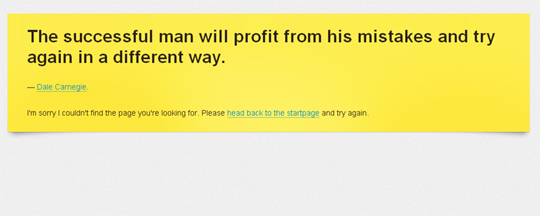
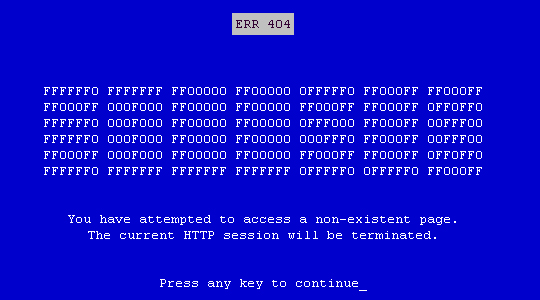
Funny 404 Error Pages

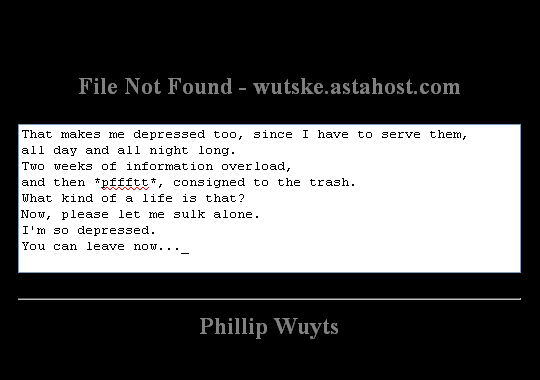
File Not Found

File-Not-Found

WANTED

wanted

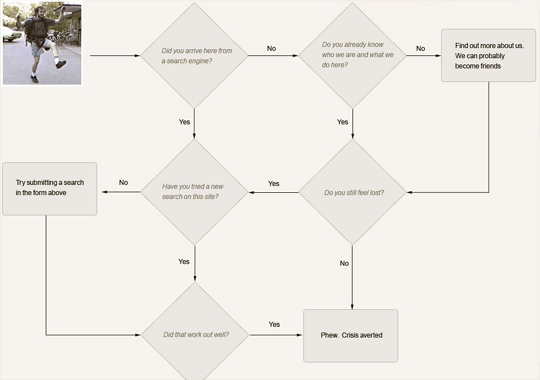
Dear Happy Internet Traveler

Dear-Happy-Internet-Traveler

The page cannot be found

The-page-cannot-be-found

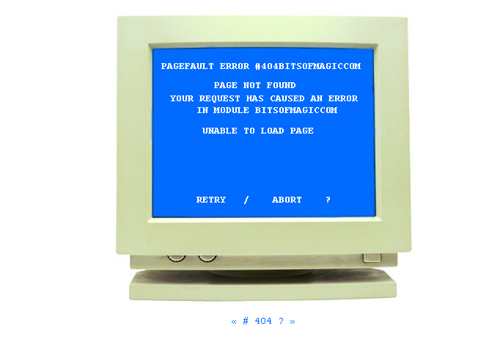
Page Fault Error

pagefault-error

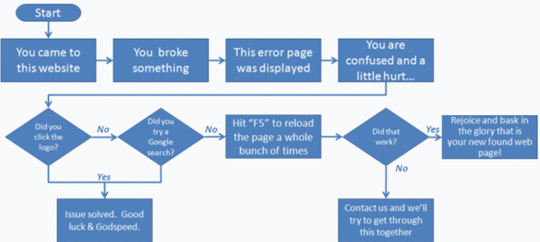
You have encountered an error

You-have-encountered-an-error

Couldn’t find the page you’re looking for

could-not-find-the-page-you-are-looking-for

Press any key to continue


Press-any-key-to-continue

Courtesy: Smashing App
Author: AN Jay

13 May, 2010

Backup your Gmail Inbox Online

gmail logoIf you want to backup your emails from Gmail to the local computer, enable POP3 access in your Gmail settings and then use a desktop mail client to download a copy of all your messages from the Google cloud to the local disk. That’s easy!
Windows Live Mail, Outlook and Thunderbird are some nice email clients that can automatically and easily bring your entire archive of Gmail messages offline.
Why you should backup Gmail to the cloud?
If you are not a huge fan of desktop applications or if you think that setting up a Gmail backup plan involves way too much effort, you can consider creating a backup of your Gmail account in the cloud itself. Before we get into the details, here are three situations where an online backup of Gmail messages will come handy:
Reason #1 – If your main Gmail account gets hacked, you will still have access to all your previous emails.
Reason #2 – If you delete an important email from your Gmail Inbox by mistake, you can easily retrieve it from the online backup. Google Apps Premier has Postini to restore deleted emails, here you’re getting that facility for free.
Reason #3 – If the Gmail service goes down (yes, it happens), you will still be able to read your older emails. Gmail outage won’t affect work.

Backup your Gmail Messages Online

There are three services that can help you automatically backup your Gmail (and Google Apps) email accounts online and luckily, they won’t cost you anything.
gmail mail fetcher
The first and most obvious choice is Gmail. Create a new Gmail account and under Settings –> Accounts and Import –> Check mail using POP3 –> Add POP3 email account, enter the email address of your main Gmail account that you want to backup.
Within an hour or so, the online mail fetcher program will pull messages from your main Gmail account and will copy them to your new “backup” account. In my limited testing, I found that Gmail’s mail fetcher left all the messages that were either “read” or have been previously downloaded by another POP3 client so it’s not “true backup.”
That brings us to another alternative – copy your Gmail mailbox to Windows Live Hotmail. While you can add a Gmail account to Hotmail using POP3 (just like Gmail’s mail fetcher), there’s a much better and reliable option out there for copying emails from Gmail into Hotmail and it’s called TrueSwitch.
Copy Gmail
 Messages to Hotmail
Setup a new Hotmail account and TrueSwitch, an awesome web-based email account migration service, will copy all your emails and attachments from Gmail to your new Hotmail address. If you have a relatively large Gmail Inbox, the backup process might take up to 24 hours but you’ll get an email as soon as the transfer is complete.
Like Gmail, Hotmail too offers “expanding” storage so it can possibly fit your large Google inbox as well. You can then add your Gmail address to Hotmail (click “Add an email account” in the sidebar) and this will ensure that new messages that land in your Gmail inbox in the future are also saved in Hotmail.
That said, both the services discussed above have one common drawback – they’ll always backup your entire Gmail mailbox and you cannot limit the backup process to a specific set of folders (or labels in Gmail). So if you have a fairly large mailbox and don’t want to backup each and every Gmail folder (or label), try Backupify.

Author: Amit Agarwal

07 May, 2010

Download Youtube Videos as MP3


download youtube videos as mp3Video2mp3

Services like Video2mp3 make downloading YouTube videos as MP3 files a simple 3 step process.  It simply allows you to enter the URL, click “convert”, and finally download the MP3 from the provided link.
Grab the YouTube URL:


Head over to video2mp3, enter the YouTube URL there and click “convert“:

download youtube videos as mp3

Wait a bit for the conversion and then just download the mp3 from the link.  Could this service get any simpler?  Yes, with a Firefox add-on that adds a link to YouTube video pages to directly convert the video.


Dirpy

Dirpy is not just yet another YouTube MP3 converter.  This site has quite a few features that set it apart.
First of all, they have integrated a bookmarklet into the mix making getting a video into the studio as easy as clicking a bookmarklet while on the YouTube video page.

download youtube videos as mp3

Other features include the ability to set the file name and the start and end time of the MP3.
Basically, take what VideotoMp3 does (an easy 3 step process) and add a few very cool features, and a fun-to-say name, and you have Dirpy.


Vid2MP3

This happens to be the site I stumbled upon when I was doing my presentation and it did the job in a good amount of time.  The site looks a bit weird but, like I said, it worked out great.
As it turns out, this site offers the choice between standard and high quality.  Using it is as easy as using Video2mp3 and only requires entering the URL:

download youtube videos as mp3
And downloading the MP3:

youtube mp3 converter
And then you’ll actually have to click another link to download it (why?):

youtube mp3 converter

Two cool features that VidToMP3 offers are the ability to preview the MP3 in an online player before downloading and the ability to email a friend a link to download the MP3.  You will have to excuse quite a few ads on this site but the results are good and timely.

Courtesy: Make Use
Author: Tim Lenahan

27 April, 2010

Delete Facebook Apps that Now Have Greater Access to Your Data

Delete Facebook Apps that Now Have Greater 
Access to Your Data
At Facebook's f8 conference, CEO Mark Zuckerberg told developers that Facebook applications would no longer have to dump any data they've collected on you after 24 hours. If you've got apps installed that might have prying eyes, here's how to uninstall them.
Facebook seems to change up its interface, and its settings, every few months, so if you thought you knew the easy way to remove an application entirely before, you might want to take a quick refresher. Not all Facebook applications are out to mine your personal stats for nefarious gain, but if you've kept an app or two hanging around because you thought there wasn't much exposure, here's how ReadWriteWeb recommends you go about showing them the door:

  1. Click on "Account" at the top-right of the screen.
  2. Click "Application Settings"
  3. Change the "Show" drop-down box to "Authorized." This will show all the applications you've ever given permission to.
  4. In the resulting list, click the "X" button on the far right next to each app you want to remove to delete it.
  5. On the pop-up box that appears, click "Remove" then click "Okay" on the next box confirming the app was deleted.


Courtesy: LifeHacker
Author: Kevin

10 March, 2010

How To Download All Facebook Photos With Your or Frens Tag

One of the best features of Facebook are the photos albums, which allows you and all of your friends to upload an unlimited number of pictures to share with your personal networks.
You can also create Facebook “tag” photos, which means a person’s profile is linked to the specific picture they appear in.  This gives you the very useful ability to quickly view pictures of specific people – all without ever having to dig through a photo album.

While it’s great having all of these pictures online, you aren’t guaranteed that they will always be available.  You can easily lose access to these photos if Facebook removes an album, if the internet is unavailable, or if the friend who uploaded the photos decides to remove them.  It is possible to save Facebook pictures individually, but that can be incredibly tedious if you have a large amount of photos you’d like to download.
In this guide, I’ll show you how to download all of the Facebook tag photos that you and your friends are in with a great application called PhotoGrabber.

Getting Started

To begin, simply head over to the PhotoGrabber homepage and download the application for your operating system.  PhotoGrabber is available for both Mac (PhotoGrabber-OSX) and Windows (PhotoGrabber-Win), so make sure to download the right .zip file.
facebook tag photos
After you’ve downloaded the file, Windows users should extract its contents to a new folder on your computer and Mac users should unzip and drag PhotoGrabber.app into your Applications folder.
facebook tag photos
One very nice feature of PhotoGrabber is that it is a standalone executable file and requires no installation.  Once you’ve extracted the files, all you need to do is run pg.exe (just make sure to keep it in the same folder as the rest of the extracted files).

Downloading Facebook Photos

Now that you’ve downloaded and extracted PhotoGrabber, double click the PhotoGrabber executable to get started.  When you first open the program, you will be presented with a login screen.  Click the large Login button to be taken to a Facebook authentication page.
facebook tag photos
Click Allow on the Facebook authentication page which will allow PhotoGrabber to have access to your content.
facebook photos
Now that you’ve authorized PhotoGrabber to work with your account, head back to the application.  Click I want to download…
facebook photos
PhotoGrabber will now display a list of all of your friends, including yourself.  To download all pictures tagged with your name, simply select Myself then click the large Begin Download button.
facebook photos
Before the download begins, you will need to select a directory where you would like to save the tagged photos.  Click OK and the download process will start.
tag your friends photos on facebook
Facebook photos are fairly small and download quickly, but the duration of the download will vary based on how many pictures have been tagged.  It took approximately 20 minutes for me to download 1,000+ photos, but your experience may vary based on the network connection.
tag your friends photos on facebook
When the photos are finished downloading you can browse to the folder where they were saved to view them!
tag your friends photos on facebook

You can repeat this exact same process to download any tagged pictures of your friends, just select their name instead of Myself at the download selection screen.
Using the PhotoGrabber application for Facebook is great for keeping a personal copy of photos from Facebook and is an excellent way to protect them for the future.
Courtesy: Make Use Of
Author: Evan Wondrasek

09 March, 2010

Download Your or Fren's Facebook Photo Albums

facebookThere are a couple of reasons why you may want to download your Facebook Photo albums (or that of your friends) to the desktop:
  • For viewing pictures even while you are offline.
  • For sharing photo albums with family members who aren’t very active on social sites. Just download a local copy of your Facebook albums and send them as email attachments or burn a DVD.
  • You have decided to close your Facebook account and therefore need a quick mechanism to move all your existing Facebook albums to another photo sharing website (like Flickr).
  • For offline backup.
download facebook photos offline
To download any of your Facebook photo albums with ease, all you need is Fotobounce – it’s a free Windows-only utility that would help you manage photos in your Facebook and Flickr accounts right from the desktop.
You can download old photos, upload new ones to the web or simply view your existing photo albums as a slideshow without downloading them locally.
Fotobounce also includes built-in face recognition (similar to what you have in Google’s Picasa Albums) so you can quickly tag photos on the desktop and these people tags will be preserved even when the photos are uploaded on to Facebook.
upload pictures to facebook
Using Fotobounce, you can also browse (and download) photo albums of all your Facebook friends from the desktop and the same utility may also be used for uploading photos from the desktop onto Facebook or Flickr gallery with a simple right click.
That’s again useful if you want to migrate photos from one account to another.

Author: Amit Agarwal

How to Export Email Addresses of all your Facebook Friends

Download Facebook Email AddressesSearch the Facebook Apps directory for something like “export contacts” and you’ll come across quite a few applications that sound as if they can transfer your friends contact information out of Facebook.
There’s an app called “Export Friends” that will save you friends names, city, birthday and their current location in a CSV (text) file that you then import into Excel, Gmail or any other web email program.
Then there are social plug-ins that can sync photos and status updates of your Facebook friends with matching contacts in Outlook.
The problem is that none of these apps can download what  you are looking – the phone numbers and email addresses of your Facebook friends. There are Greasemonkey scripts and other hacks that can pull this information from Facebook through “web scraping” but don’t ever take that route as Zuckerberg’s army might ban your account forever.
The trick, as you can see in the video, is actually quite simple.
Go to address.yahoo.com and click the Facebook icon. A login dialog should pop-up, just sign-in with your Facebook credentials and within seconds, you entire Facebook address book will be available inside your Yahoo Mail Account. Once the import is done, click this link to download a CSV file with the email addresses of all your Facebook contacts to your desktop.
You can then import the CSV file into Gmail Contacts, LinkedIn, your phone address book or any of the social sites where you want to connect with your existing Facebook circle.
Update: If Yahoo! is unable to import your Facebook Address book, open your Facebook page and choose “Application Settings” under Account. Next remove the “Yahoo! Contact Importer” application from your Facebook profile and try the steps mentioned in the video again.
Author: Amit Agarwal

18 February, 2010

Which Social Network Is Right For You?

 
Between Twitter, Facebook, and Google's new social networking tool, Buzz, it's hard to turn a corner without running into another social network. But how do you know which networking tool fits you best? We're here—with big charts and all—to help.
Last week Google Buzz made us ask ourselves what we wanted out of social networking. To answer that question, we charted what we liked and disliked about setup, privacy, usability, and other aspects of Buzz, Twitter, and Facebook. Here's the result.
This chart doesn't cover everything about every network out there. MySpace is (seemingly) on the decline or, at best, re-purposing itself. LinkedIn is really a business contact pool, FourSquare a geo-location game, and other networks generally too niche to be compared in the same aspects and categories.
For the simple read, here's the full chart of our Buzz, Twitter, and Facebook comparison. We color-coded each answer to give a context of where it stood, in comparison to what we know is possible and what a smart user would like to see. Red means that you can't rely on this network for this feature. Yellow indicates that the network offers it or makes due, but could definitely be better. Green means something works, and can be considered a selling point.


There's a lot of text there already to parse through, but it's obviously segmented and specific to each function. Having dug into the settings of each network and debated it with my fellow editors, I'll try to offer up a concise take on how I'd explain each network to someone completely new to any of them. I hope it might spur some thought about which network you're using now, too, and why.

Facebook

 
Facebook's strongest feature, as it stands now, is that it's relatively easy to figure out who your "friends" are. You can pull them from your webmail address book, sure, but you have to check off those you want to be a friend with, and they have to reciprocate. After that, you start seeing their status updates, photos, and other activities on Facebook.com, right when you log in. Simple enough, right? Not exactly.
You can't, or at least shouldn't, create two separate Facebook accounts for personal friends and work contacts/co-workers/casual acquaintances, all of whom are likely to hit you up on Facebook sooner or later. So it's up to the user to create groups of friends and set what those different friends can see. Also, your Facebook identity is tied to certain "networks"—an employer, a school, a location—that you have to remember to set controls for, too. Dig around and you'll almost certainly find the very fine-grain controls you might need. But then, every few months, Facebook changes up their offerings, for better or worse, and it's up to the user to notice and re-learn how to decide what's private, to whom, and, in a much more worrisome way, what's being made public and search-able on the web.
Facebook does have a pretty great iPhone app, and offers a good amount of access to third-party clients like Brizzly and TweetDeck. But they're still limited in some ways meant to drive you to the web site, and their non-iPhone mobile apps and sites are tough to love.

Twitter

 
What's easy to like about Twitter is the simplicity. You get an account, you see a suggested list of famous users that you can feel free to ignore, and then you're asked to write 140 characters about something, anything. It will be made public, search-able, and able to be re-broadcast by other users, unless you've decided to lock your entire account and require your permission to view it. You can follow other people, block the occasional jerk from following you, reply to others' posts, message other users privately (if you both follow each other), and, over time, you'll learn about third-party apps and context tricks that make the service make more sense. I started using Twitter one day into my first SXSW, and I had it mostly figured within one or two over-eager days.
That simplicity, and reliance on third-party sites and apps for picture posting, link shortening, and the like can be confusing to newcomers that aren't into digging around, for sure. And the speed and volume of the main stream can be overwhelming and off-putting. But Twitter has grown slowly into a network that adapts to users' needs, whether by force or through user innovation. If you don't like how noisy and fast your main feed is, creating a list of high-priority friends and thinkers will do the trick. As you figure out what you like and don't like about Twitter, you'll be able to find third-party apps and interfaces that cater to those interests. We'd love to see expanded features here or there (for discovering who's following you, and perhaps hiding certain posts from all but a few close followers, for example), but Twitter is a pretty novel solution for those who like to share short updates with the web at large.

Buzz

 
Whatever we write about Buzz will be slightly inaccurate in a week's time, most likely. Buzz is brand new, and already it announced an apology and upcoming "fixes." From what we've seen, though, it seems like it wants to be the solution that FriendFeed never was to tracking your friends and contacts' multi-varied interests. Some friends change their IM status to say what's up, while others post on Flickr, Twitter, their own blog, and other places. Rather than making you head to each site, or make those friends become endless self-promoters, Buzz aims to connect you to everything your friends are doing from a place you're already familiar with—your Gmail and Google contacts.
And that, of course, is where the uproar started. Buzz showed up, suddenly, inside Gmail, and when asking users to sign up, assumed too much that they'd like to turn their email contacts into people they "follow," and maybe make that following status public. If Google could reassure Buzz users that what they did on the network was only among their followers they've individually approved, it would be more appealing. The service also needs a dedicated home, instead of being spread across mobile sites, Gmail, Google Maps, and elsewhere, and gain better controls for how much "buzz" flies at you. But it's promising, still, because it's not a public-type Twitter, or a walled-off Facebook, but something else entirely.

Courtesy: Life Hacker
Ollie the bluebird/Twitterrific

03 February, 2010

Twitter Clients – Web Apps or Desktops Apps? Which is Better?

cloud_vs_desktop

Twitter is a beast, in my opinion, that needs to be tamed!  If you are to follow any amount of people on Twitter and actually keep up with them, you’ll need to use some sort of Twitter client in order to organize the chatter and get anything out of it all.
In the past, I have written articles on several different web apps including Tweetfunnel and HootSuite.  Notice that both of those are web apps, meaning that you don’t install them on your computer but run them directly from the Internet from your web browser.  There is another whole category of Twitter clients that you install on your PC, including Tweetdeck, Twhirl and Seesmic.
Therein lies the debate!  Which type of Twitter client do you prefer — the web app or the desktop app?  Let’s take a look at some of the pros and cons of each and see where we land!

The web app Twitter client

twitter clients

There are many reasons someone may choose to use a web app as their Twitter client of choice.
  1. Running another application takes up more system resources so a web-based app could help to conserve system resources.
  2. It can be easier to not have to switch between another program and your browser windows.
  3. No download is necessary and version control is taken care of for you.
  4. Perhaps you will find more options in the web-based alternatives.
Using web-based applications in general have certain advantages such as having access on any Internet connected computer with a web browser, not worrying about installing and updating, and hard drive space is no longer an issue.  It almost seems everything is moving toward the “cloud” doesn’t it?
twitter clients

Currently my web app of choice is still HootSuite because it’s easy to use, easy to track stats, and the Hootlet bookmarklet makes sharing links easy.  However, there are some reasons why I find myself using a desktop app also.

The desktop app Twitter client

seesmic twitter client

Desktop apps do have their benefits.  One of most used Twitter clients is Tweetdeck and that is a desktop app.  So, why do people still choose to use desktop apps in light of the benefits of web apps?
  1. Refreshing some of the web-based clients can become cumbersome.
  2. Many desktop clients make being notified of tweets quite simple.
  3. It’s easy having the program running in the tray ready for access.
  4. Sometimes issues can be resolved by the user by reopening or reinstalling a program whereas if the webapp goes down, you’re out of luck.
Tweetdeck twitter client

Aside from the typical power apps such as Seesmic and Tweetdeck, there are the browser plugins such as Echofon and Chromed Bird.
chromed bird twitter client

I prefer to use this type of app because I get notifications directly in my browser window.

Courtesy: Make Use
Author: Tim Lenahan

25 January, 2010

How to Use Twitter During Office Hours

Some organizations have this policy that social media sites like Twitter, Facebook, etc. are a waste of time and therefore ban their staff from using such sites during office hours.

Then you also have companies that have no such rules in place and allow unrestricted access to the web as long as the employees are able to deliver what’s expected.

A. When Twitter is Not Allowed in Office

Twitter on Mobile PhoneIf you are working for a company that falls in the first category (no social media please), its better that you install a Twitter mobile app on your cell phone and not use the office computer at all for tweeting. After all, your boss will get a web usage report at the month-end and he will easily figure out which sites have you been visiting secretly during office hours.

If you don’t have a data-plan on your phone and cannot resist that urge to tweet ever 10 minutes, you may use tools like Posterous or Nutshell that allow anyone to send and receive tweets through regular office email.

Brizzly - Twitter AlternativeThere’s another option that will come handy if the twitter.com website itself has been blocked by your office firewall. You can use Twitter indirectly through third-party sites like Brizzly or Dabr.

These sites offer a fresh interface to your Twitter account with all the regular features (retweets, @replies, etc.) but the more interesting part is that they will work even if Twitter domain is inaccessible from your office computer. You can track up to 5 accounts with Brizzly.

Create Feedburner FeedsYour Twitter friends’ timeline feed is protected by a password but you may still subscribe to it with a simple hack involving FeedBurner.

You can then follow tweets from your friends using Outlook or any other newsreader. Alternatively, you can subscribe to the friend’s feed directly with FeedDemon provided that access to Twitter is open in your office.

If you are allowed to use IM clients in Office, you can add twitter@twitter.com as a buddy in Google Talk and send tweets through IM. TweetSwitch is another free service that lets you send and receive tweets through popular instant messaging clients including AIM, Windows Live Messenger, Yahoo! Messenger, Skype and GTalk.

B. Use Twitter Without Letting Anyone Know

Now let’s look at the second category – you are very much allowed to use Twitter at work but you still don’t want to give your boss an impression that you are a Twitter addict.

In that case, here’s what you can do to possibly hide your Twitter addiction from boss and colleagues.

Twitter Client for DOS You can probably find a gazillion desktop apps for Twitter but if you are looking for something that doesn’t scream to the world that its a Twitter client, try Quitter.

Quitter is a simple twitter client that runs through the command prompt or the DOS window. With Quitter, you can read and reply to tweets, follow /unfollow people or even manage your direct messages. All you need is a Windows computer and no one in the office will ever have a clue that you are engrossed in Twitter.

Twitter Spreadsheet If you are a Microsoft Office user, Spreadtweet is another interesting option for you. This is a proper Twitter client but in the guise of a spreadsheet so your boss will think that you’re working on an Excel sheet while you are up there tweeting your heart out!

With SpreadTweet, you can send and receive updates, @replies and direct messages all inside an application that looks like a clone of Excel 2007.

The other great option for Microsoft Office users in TwInbox – you probably have Outlook open on your screen all the time and this free Outlook add-in will simply turn your Outlook into a powerful Twitter client.

Twitter in Outlook You can handle tweets just the way you manage your Inbox and the add-in will even let you tweet email messages with a click. The service is integrated with TwitPic so you can tweet pictures by simply dragging them into Outlook.

There’s more – all standard Outlook features like search, mail archiving, categories, etc. will also become available to your Tweets. This screencast explains TwInbox in detail.

Courtesy: Digital Inspiration
Author: Amit Agrawal